These are the steps to compare two different scenarios visually:
- Once you have run a scenario, you will be presented with the results through the result viewer.
- Now you can save this result set as the scenario you would use for comparison.
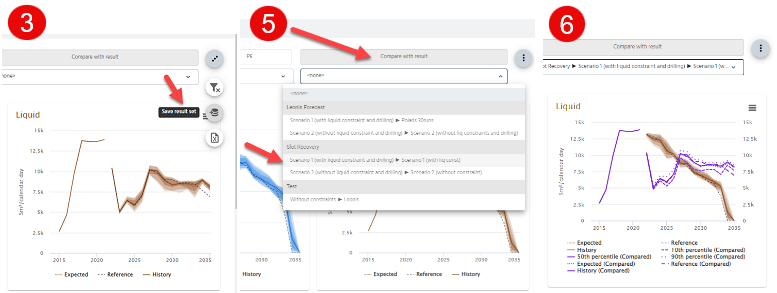
- Choose the button on the right-hand side with 3 dots and choose the “Save result set” button option.
- Then run a new scenario that you would like to compare to the above scenario.
- On the right-hand side of the result viewer, you will find a section called ‘’Compare with result’’; where you can select the scenario you previously saved. The name will appear in the drop-down list under this section.
- By doing so, pForecast will automatically generate the comparison between the two scenarios for you, and the scenario you selected from the list will show up with purple lines.
Was this article helpful?
That’s Great!
Thank you for your feedback
Sorry! We couldn't be helpful
Thank you for your feedback
Feedback sent
We appreciate your effort and will try to fix the article